
Contextual video matching
Create more video inventory with "Contextual video matching"
Overview
When you don't have dedicated videos for each article on your website, the contextual video matching feature of the Dailymotion Player can automatically pick and embed the most relevant videos for your text content, saving you time and effort.
When the contextual video matching feature is activated, the Dailymotion's Player analyzes the context of the page, including the title and page URL, to play the most relevant videos. These videos are sourced from your Organization or from your channel catalog.
Contextual video matching takes over the process of finding the perfect content for each page, and increases ad revenue by creating additional ad opportunities on your website.
How does it work?
When a Player with contextual content feature is embedded on a page, it will automatically retrieve useful data from that page, such as:
- Page URL: www.your-website.com/your-article-name/
- Titles: we are checking if your page contains
<h1>then falling back on<h2><h3>and<title> - Content: the text content of the page
These data are sent by the Player to our recommendation engine to determine the context of the page, which in return will send to the Player a selection of relevant videos to play.
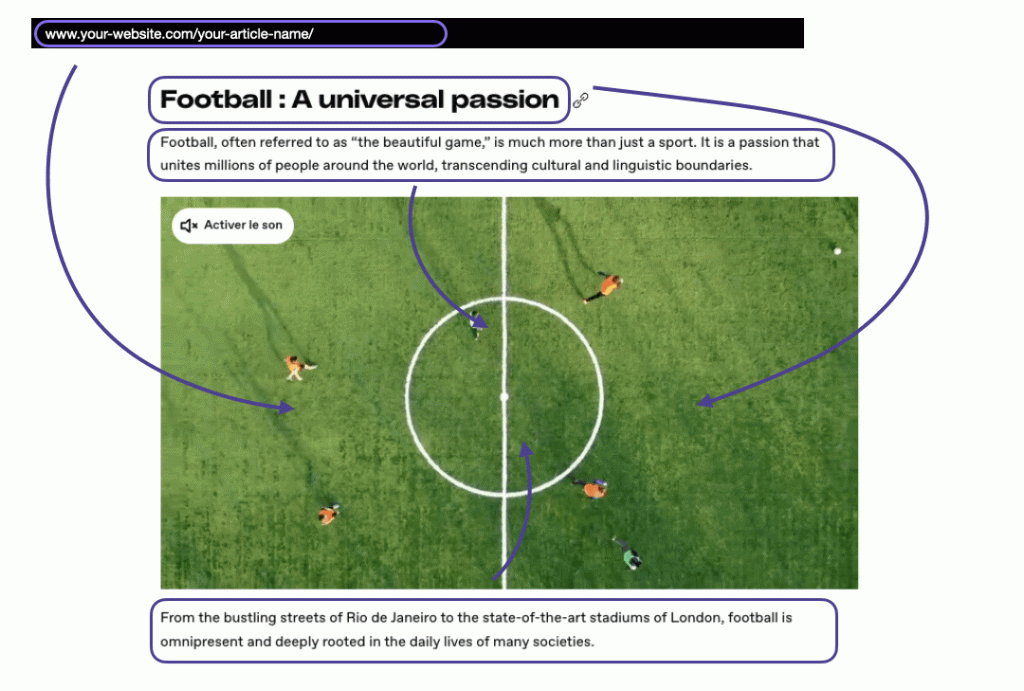
Implement "contextual video matching"
You can easily activate the contextual video matching feature using the API.
If you’re not comfortable using the API, you can activate the feature from the Dailymotion Studio.
Requirements
Contextual video matching must be implemented on webpages that contain semantic titles and textual content to ensure relevant recommendations.
1. Create a Player with enable_contextual_content
AuthenticationCreating a Player requires
player.writescope. Refer to the scope guide for more details.
Create a custom Player which includes the following elements:
- Activate the feature using the field
contextual.enable_contextual_contenttotrue. - Choose whether contextual content should be sourced from your
organizationor from yourprofileusingcontextual.source. Make sure videos are uploaded, whichever option you choose. - We recommend enabling autostart to reduce loading time (included in code sample below).
Breaking change v2The
contextual.sourcevaluechannelhas been renamed toprofilein API v2. Make sure to update your configuration accordingly.
Code example
// Possible values for contextual.source: organization or profile
// Using playback.autostart_mode=on is recommended
// Replace <YOUR_PROFILE_ID> with your own profile ID

curl --request POST \
     --url https://api.dailymotion.com/v2/profiles/<YOUR_PROFILE_ID>/players \
     --header 'accept: application/json' \
     --header 'authorization: Bearer ${ACCESS_TOKEN}' \
     --header 'content-type: application/json' \
     --data '{
       "name": "My contextual Player",
       "contextual": {
         "enable_contextual_content": true,
         "source": "organization"
       },
       "playback": {
         "autostart_mode": "on"
       }
     }'
Customization options:
You can customize the behavior of your contextual video matching using the following options:
contextual.enable_fallback: Allows the contextual Player to display a fallback video when highly relevant content is not available, ensuring the Player is never empty.contextual.enable_freshness: Limits the video selection to recent content only. Use it in combination withcontextual.freshness_daysto define the freshness limit in days.
Simply add these options to your Player configuration.
Example:
curl --request POST \
     --url https://api.dailymotion.com/v2/profiles/<YOUR_PROFILE_ID>/players \
     --header 'accept: application/json' \
     --header 'authorization: Bearer ${ACCESS_TOKEN}' \
     --header 'content-type: application/json' \
     --data '{
       "name": "My contextual Player",
       "contextual": {
         "enable_contextual_content": true,
         "source": "organization",
         "enable_fallback": true,
         "enable_freshness": true,
         "freshness_days": 30
       },
       "playback": {
         "autostart_mode": "on"
       }
     }'
2. Embed an empty Player on your page
Choose your preferred method to embed the Player on your page: either Player Embed Script or Player Library Script. This feature is not compatible with the iFrame embed method.
Make sure to remove the video and playlist fields (data-video video data-playlist or playlist) in order to benefit from the contextual video matching feature.
Once integrated, users landing on your page should automatically see the most relevant videos based on the context of the page.
Code examples
// Replace {Player ID} with the ID of the Player created in step 1

<script src="https://geo.dailymotion.com/player/{Player ID}.js"></script>
// Replace {Player ID} with the ID of the Player created in step 1
<body>
<script src="https://geo.dailymotion.com/libs/player/{Player ID}.js"></script>
<div id="my-dailymotion-player">My Player placeholder</div>
<script>
dailymotion
.createPlayer("my-dailymotion-player")
.catch((e) => console.error(e));
</script>
</body>
FAQ:Refer to the contextual video matching FAQ for answers to common questions about the feature.
Updated about 2 months ago